
Agreements
The Agreements section is where administrators create, edit, and manage all user-facing agreements on the FundedYouth platform. Agreements are the documents users must read and sign before they can access certain features in the portal.
Overview
Section titled “Overview”This agreement outlines the terms and conditions for accessing and using the FundedYouth Academy Member Portal. It...
Each agreement card shows:
| Detail | What It Shows |
|---|---|
| Title | The name of the agreement |
| Updated | When the agreement was last modified |
| Required badge | Shown if the agreement is marked as required (amber badge) |
| Status badge | Active , Draft , or Trash |
| Description | A short summary or a preview of the agreement text (3-line clamp) |
| Created | When the agreement was first created |
| View Full Text | Opens a preview modal showing the complete agreement content |
| Three-dot menu | Actions for the agreement (see below) |
Active, Drafts, and Trash
Section titled “Active, Drafts, and Trash”Agreements are organized into three tabs based on their status:
Active
Section titled “Active”Agreements that are live and visible to users. Users can see and sign these agreements in their portal. This is where all your published agreements live.
Drafts
Section titled “Drafts”Agreements that are not visible to users. Use drafts to prepare and review agreement content before publishing. Draft agreements cannot be signed — users never see them.
Agreements that have been soft-deleted. They are removed from the Active and Drafts tabs but not permanently destroyed. From the Trash tab you can:
- Restore an agreement — moves it back to Drafts so you can review and re-publish it
- Revoke Signatures — removes all user signatures associated with the agreement
- Delete Permanently — destroys the agreement and all its signatures forever (cannot be undone)
What Happens to Signatures When You Move an Agreement?
Section titled “What Happens to Signatures When You Move an Agreement?”Moving an agreement to Drafts or Trash does not automatically revoke user signatures. Users who already signed the agreement keep their signatures — they are not deleted or changed.
What changes is visibility: the User Portal only shows active agreements. So when an agreement is moved to Drafts or Trash:
- Users can no longer see or sign it
- Users who already signed it still have their signature on record
- Any menu access or roles granted by signing remain in effect
- The agreement is no longer checked as a required agreement (if it was marked required)
If you want to actually remove users’ signatures, you must do that manually using Revoke Signatures from the Trash tab. This is a separate, intentional action — the system never deletes signatures on its own unless you permanently delete the agreement.
| Action | Signatures Removed? | Agreement Visible to Users? |
|---|---|---|
| Move to Drafts | No — signatures stay | No |
| Move to Trash | No — signatures stay | No |
| Revoke Signatures (from Trash) | Yes — all signatures deleted | No |
| Delete Permanently (from Trash) | Yes — agreement and all signatures destroyed | No |
Three-Dot Menu Actions
Section titled “Three-Dot Menu Actions”Each agreement card has a three-dot menu (⋮) with different actions depending on the tab:
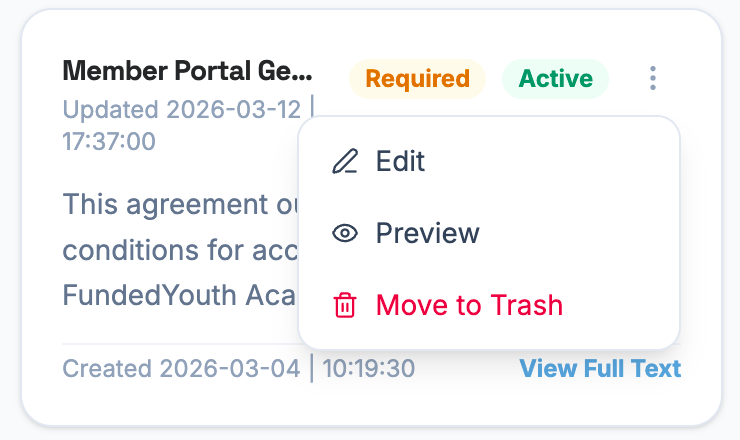
Active and Drafts
Section titled “Active and Drafts”| Action | What It Does |
|---|---|
| Edit | Opens the agreement form to edit the title, content, settings, and status |
| Preview | Opens a read-only modal showing the full agreement text |
| Move to Trash | Soft-deletes the agreement — moves it to the Trash tab |
| Action | What It Does |
|---|---|
| Preview | Opens a read-only modal showing the full agreement text |
| Restore | Moves the agreement back to the Drafts tab |
| Revoke Signatures | Removes all user signatures for this agreement |
| Delete Permanently | Destroys the agreement and all signatures — cannot be undone |
Viewing an Agreement
Section titled “Viewing an Agreement”Click View Full Text on any card or select Preview from the three-dot menu to open the preview modal:
By accessing or using the FundedYouth Academy Member Portal ("Portal"), you acknowledge that you have read, understood, and agree to be bound by this General Use Agreement ("Agreement"). If you do not agree to these terms, you may not access or use the Portal.
If you are under the age of 18, your parent or legal guardian must review and agree to this Agreement on your behalf before your account can be activated.
The preview shows:
- Title and effective date at the top
- Last updated timestamp
- The short description in italics (if one was provided)
- The full agreement text rendered with formatting (supports markdown — bold, lists, headings, etc.)
- A Close button at the bottom
Creating & Editing
Section titled “Creating & Editing”Click the + New Agreement button in the top-right corner to open the agreement form, or select Edit from the three-dot menu to edit an existing one.
Edit Agreement
Update the agreement details.Form Fields
Section titled “Form Fields”| Field | Required? | What It Does |
|---|---|---|
| Title | Yes | The name of the agreement shown to users and on cards |
| Effective Date | No | When the agreement takes effect. Shown to users so they know when the terms began. |
| Short Description | No | A brief summary shown on agreement cards. If left blank, a preview of the full text is shown instead. |
| Agreement Text | Yes | The full content of the agreement. Supports markdown formatting for bold, lists, headings, and more. |
| Portal Menu Access | No | Which portal section gets unlocked when a user signs this agreement (see below) |
| Auto-Assign Role | No | Automatically assign a role to the user when they sign (see below) |
| Required | No | When enabled, users must sign this agreement before they can access any portal features |
| Status | Yes | Active (visible to users) or Draft (hidden from users) |
Click Create Agreement or Save Changes to save. Click Cancel to discard.
Portal Menu Access
Section titled “Portal Menu Access”The Portal Menu Access setting determines which portal section gets unlocked when a user signs the agreement. This is how FundedYouth controls access to different features.
| Option | What It Unlocks |
|---|---|
| None (no menu gating) | Signing doesn’t unlock anything — the agreement is informational only |
| Student | Unlocks the Student menu (Pathways, Courses, Badges) |
| Membership | Unlocks the Subscriptions, Sessions, and Billing menus |
| Volunteer | Unlocks the Volunteer menu |
| Instructor | Unlocks Student Management in the Admin Portal |
| Credit Subscription | Unlocks Credit Plans and Billing |
| Session Subscription | Unlocks Session Plans and Billing |
How the Current Agreements Are Configured
Section titled “How the Current Agreements Are Configured”Here’s how each of the six active agreements uses Portal Menu Access:
| Agreement | Portal Menu Access | Auto-Assign Role | Required | What Happens When Signed |
|---|---|---|---|---|
| Member Portal General Use Agreement | None | None | Yes | User can proceed to the portal. No specific menu is unlocked, but signing is mandatory before accessing anything. |
| Adult Terms of Service Agreement | None | None | Yes | Same as above — must be signed but doesn’t unlock a specific section. |
| Student Agreement | Student | Student | No | Unlocks the Student menu (Pathways, Courses, Badges) and automatically assigns the Student role. |
| Subscription & Credit Plan Agreement | Membership | None | No | Unlocks the Subscriptions, Sessions, and Billing menus in the User Portal. |
| Volunteer Agreement | Volunteer | None | No | Unlocks the Volunteer menu in the User Portal. The user must also be manually assigned the Volunteer role by an admin. |
| Instructor Agreement | Instructor | None | No | Unlocks Student Management in the Admin Portal. The user must also be manually assigned the Instructor role by an admin. |
Auto-Assign Role
Section titled “Auto-Assign Role”The Auto-Assign Role setting automatically gives the user a role when they sign the agreement. This saves admins from having to manually assign roles.
| Option | What It Does |
|---|---|
| None (no auto-assign) | No role is assigned — signing only unlocks the menu (if configured) |
| Student | Automatically assigns the Student role when the user signs |
| Volunteer | Automatically assigns the Volunteer role when the user signs |
Currently, only the Student Agreement uses auto-assign (assigns the Student role). The Volunteer and Instructor agreements require an admin to manually assign the role — signing the agreement alone only unlocks the menu.
Required Agreements
Section titled “Required Agreements”When an agreement has the Required toggle enabled, every user must sign it before they can access any portal features. Required agreements are shown with an amber Required badge on their cards.
Currently, two agreements are marked as required:
- Member Portal General Use Agreement — General terms and conditions for using the portal
- Adult Terms of Service Agreement — Legal terms of service
If a user hasn’t signed all required agreements, they will be prompted to sign them before they can use the portal.
Deleting Agreements
Section titled “Deleting Agreements”Moving to Trash
Section titled “Moving to Trash”Select Move to Trash from the three-dot menu. A confirmation dialog appears:
Moving to trash is a soft delete — the agreement is hidden from Active/Drafts but not destroyed. You can restore it at any time from the Trash tab.
Permanently Deleting
Section titled “Permanently Deleting”From the Trash tab, select Delete Permanently from the three-dot menu. A stricter confirmation dialog appears that requires you to type the agreement title to confirm:
- You must type the exact agreement title before the Delete button becomes active
- This permanently removes the agreement and all user signatures associated with it
- This action cannot be undone
Searching Agreements
Section titled “Searching Agreements”The search bar at the top filters agreements by title and body text (case-insensitive). Search only applies to the current tab — if you’re on the Active tab, only active agreements are searched.
When no agreements match your search, you’ll see:
- Active tab: “No agreements found”
- Drafts tab: “No drafts found”
- Trash tab: “No trashed agreements found”
Next Steps
Section titled “Next Steps”- See how agreements appear to users in the User Portal Overview
- Read each agreement in the Agreements documentation section
- Review the User Management page to see user signatures and revoke them