
Login & Signup
The authentication page handles login, signup, two-factor authentication, password reset, and email verification — all from a single, animated card interface.
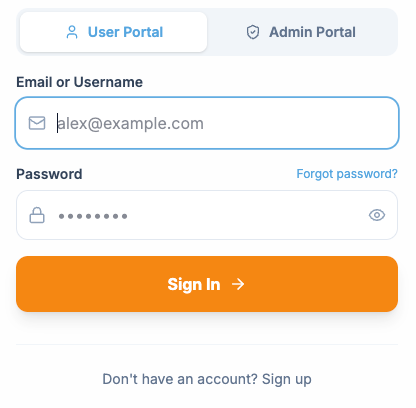
Portal Mode Selector
Section titled “Portal Mode Selector”Before logging in, users choose which portal to access using the toggle at the top of the login form:
- User Portal — The default. Opens the member-facing portal with courses, subscriptions, sessions, and volunteering.
- Admin Portal — For administrators. Requires the
admin_portal_accesspermission.
The selected portal mode is stored in the user’s session token and determines which portal renders after login.
User Portal Login
Section titled “User Portal Login”To log into the User Portal:
- Select User Portal (this is the default)
- Enter your email or username
- Enter your password
- Click Sign In
If your account has two-factor authentication enabled, you will be prompted for a verification code after entering your credentials.
What you need
Section titled “What you need”- A verified email address
- Your password
Admin Portal Login
Section titled “Admin Portal Login”To log into the Admin Portal:
- Select Admin Portal using the toggle
- Enter your email or username
- Enter your password
- Click Sign In
- Complete the two-factor authentication prompt
Requirements
Section titled “Requirements”- Your account must have the Admin or Instructor role
- The
admin_portal_accesspermission must be enabled for your role - Two-factor authentication (2FA) is required — Admin accounts must have 2FA set up and active for security. You will not be able to access the Admin Portal without completing 2FA verification.
If you do not have the required permission, login will be denied with an error message.
Creating an Account
Section titled “Creating an Account”New users can create an account by clicking Sign Up at the bottom of the login form. Signup is a two-step process.
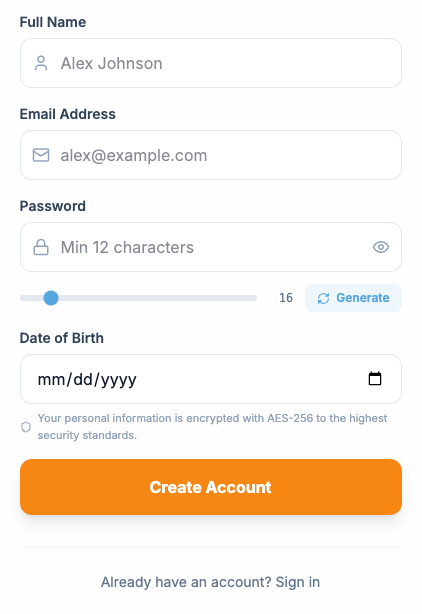
Step 1: Age Verification
Section titled “Step 1: Age Verification”Users enter their age. This determines:
- Whether parental consent fields are required (under 18)
- The date of birth is calculated from the entered age
An info box explains why age verification is needed and how parental consent works for minors.
Step 2: Account Details
Section titled “Step 2: Account Details”The signup form collects:
| Field | Required | Notes |
|---|---|---|
| Full Name | Yes | Displayed throughout the portal |
| Email Address | Yes | Used for login and verification |
| Password | Yes | Must meet strength requirements shown inline |
| Date of Birth | Yes | Pre-filled from age verification step |
| Parent’s Email | If under 18 | Required for minors, used for consent |
After submitting, the user sees a success message instructing them to check their email for a verification link.
Email Verification
Section titled “Email Verification”When a user first visits the portal after clicking their verification link, a banner confirms their email has been verified. The system handles three states:
- Verified — Green banner confirming the email was verified
- Expired — Amber banner indicating the link expired
- Failed — Red banner for invalid or already-used links
Two-Factor Authentication (2FA)
Section titled “Two-Factor Authentication (2FA)”If a user has 2FA enabled (or it is required for their role), an additional verification step appears after entering their password.
Authenticator Code
Section titled “Authenticator Code”Six individual digit inputs that auto-advance as the user types. Pasting a full 6-digit code is supported.
Recovery Code
Section titled “Recovery Code”If the user doesn’t have access to their authenticator app, they can switch to recovery code mode — a single text input for entering a one-time recovery code.
A warning appears if the user is running low on recovery codes.
Password Reset
Section titled “Password Reset”Accessible via the Forgot Password? link on the login form:
- User enters their email address
- A reset link is sent (expires in 1 hour)
- Success message confirms the email was sent
- The user follows the link to set a new password on a dedicated reset page
Error Handling
Section titled “Error Handling”All error states display a red banner at the top of the form with a descriptive message. Common errors include:
- Invalid credentials
- Account not found
- Email not verified
- 2FA code incorrect
- Admin portal access denied (missing permission or role)
Next Steps
Section titled “Next Steps”- Learn about Roles & Permissions to understand what each role can access
- Explore the User Portal documentation
- Explore the Admin Portal documentation