
Student
The Student section is your learning dashboard. This is where you can see what courses are available, enroll in them, follow learning pathways, and earn badges as you complete your learning.
Becoming a Student
Section titled “Becoming a Student”Before you can see the Student menu, you need to sign the Student Agreement.
Sign the Student Agreement
Section titled “Sign the Student Agreement”This agreement explains:
- What the Student section does
- The rules you need to follow
- How badges and courses work
- That course materials belong to FundedYouth and can’t be copied or shared
Read the full Student Agreement
Age Requirements
Section titled “Age Requirements”| Age | What You Need |
|---|---|
| 18 or older | Sign the agreement yourself |
| 13 to 17 | Your parent or guardian must also read and agree. You’ll need to provide their name and email when signing. |
| Under 13 | Same as above, plus your parent or guardian must be with you at all times during in-person sessions |
My Courses
Section titled “My Courses”This is where you browse available courses and track the ones you’re enrolled in.
My Courses Tab
Section titled “My Courses Tab”Each enrolled course card shows:
- Course name and SKU
- Type — what kind of learning it is (see below)
- Status — where you are in the course
- Enrolled date — when you signed up
Click on any course to see its full details:
Intro to 3D Printing with Cura Slicer
The detail page shows:
- Type and status badges at the top
- Description — what the course is about
- Enrolled date and Assigned By — when you enrolled and who assigned you
- Status notice — if your course is in progress, a yellow banner reminds you that an admin will update your status after your instructor confirms completion
Course Types
Section titled “Course Types”Course — A standard learning unit with lessons and projects
Class — A group learning session with an instructor
Workshop — A short, hands-on training session
Enrollment Status
Section titled “Enrollment Status”Not Started — You’re enrolled but haven’t begun yet
In Progress — You’re currently working on this course
Completed — You finished the course
Browse Tab
Section titled “Browse Tab”Shows all available courses you haven’t enrolled in yet. You can filter by Course type (Course, Class, or Workshop) and Category.
At the top of the Browse tab, there’s a reminder of how enrollment works:
Each course shows up as a card. Here’s an example of a locked course:
- Course name and SKU (a short code like “3DP2”) — so you know exactly which course it is
- Type badge — tells you if it’s a CLASS , COURSE , or WORKSHOP
- Description — what you’ll learn
- Prerequisites — if you need to finish another course first, it’s listed at the bottom
- Lock status — if you haven’t met the prerequisites, the course shows a Locked badge and you can’t enroll yet
Clicking Details on any course card opens a preview popup:
The preview shows the full description, duration, category, and any requirements you need to complete first. If all prerequisites are done, you’ll see an Enroll in Course button instead.
To enroll, find a course that isn’t locked and click Enroll. Enrolling is free — it just adds the course to your “My Courses” tab so you can track your progress.
How Courses Work
Section titled “How Courses Work”Here’s the full process from start to finish:
- Enroll in a course — Find it in the Browse tab and click Enroll. This is free.
- Register for a session — Go to the Sessions menu and sign up for an in-person class. This is where you may need credits.
- Attend the session — Show up at FundedYouth and learn.
- Get confirmed — Your instructor confirms you attended and completed the work.
- Admin marks it complete — A FundedYouth administrator updates your enrollment status to “Completed.”
- Earn your badge — If the course has a badge, it’s automatically added to your My Badges page.
Prerequisites
Section titled “Prerequisites”Some courses require you to complete another course first. These are called prerequisites. If a course has a prerequisite:
- The portal will show you which course you need to finish first
- You cannot enroll until the prerequisite is marked as completed by an administrator
- Prerequisites must be recorded by a FundedYouth administrator — you can’t skip them
My Pathways
Section titled “My Pathways”A pathway is a group of related courses that go together — like a learning trail. For example, a “3D Printing Pro” pathway might include 2 courses that teach you 3D printing step by step.
What You See
Section titled “What You See”- Pathway name and description
- How many courses are in the pathway
- Your progress — how many you’ve completed, how many are in progress, and how many you haven’t started
Pathways only show up here if you’re enrolled in at least one course in that pathway. If you don’t see any pathways, go to My Courses and enroll in something first.
My Badges
Section titled “My Badges”Badges are achievements you earn when you complete courses. Think of them like trophies or stickers — they show what you’ve learned.
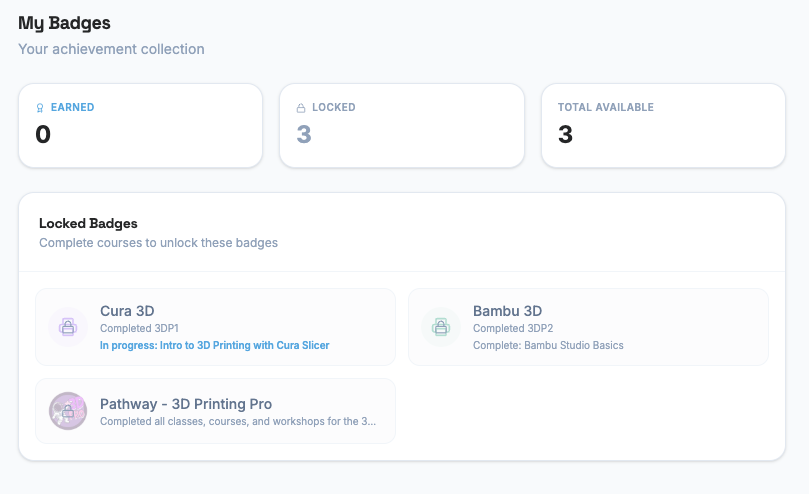
At the top of the page, you’ll see three numbers:
| Stat | What It Means |
|---|---|
| Earned | Badges you’ve completed and received |
| Locked | Badges you haven’t earned yet |
| Total Available | All badges in the system |
Earned Badges
Section titled “Earned Badges”These are badges you’ve already received. Each one shows:
- The badge name and icon
- The date you earned it
Badges are awarded automatically when an administrator marks a course as completed. You don’t need to do anything extra — just finish the course.
Locked Badges
Section titled “Locked Badges”These are badges you haven’t earned yet. Each one shows:
- Which course you need to complete to unlock it
- Your status on that course — “in progress” if you’re enrolled, or “not started” if you haven’t enrolled yet
Credits and the Student Section
Section titled “Credits and the Student Section”The Student section is separate from the credit system. Enrolling in courses is always free. Credits are used in the Sessions and Subscriptions sections, not here.
Here’s how they connect:
| What | Where | Credits Needed? |
|---|---|---|
| Enrolling in a course | Student menu | No — always free |
| Registering for a session | Sessions menu | Maybe — depends on the session |
| Purchasing a credit pack | Subscriptions menu | This is where you buy credits |
Next Steps
Section titled “Next Steps”- Learn about FYBIT Credits and how the credit system works
- View the Student Agreement
- Check out Volunteering to earn volunteer credits